Content creators can face several challenges when working with video transcripts. To name a few:
- YouTube's auto-generated captions aren't completely accurate.
- Professional transcription services cost too much for high-volume needs.
- Manual transcription creates a major bottleneck in your content creation process.
- It can take hours to edit transcripts down to a blog-ready format.
With these obstacles in place, most creators never tap into their video content's potential to reach wider audiences through different formats.
TL;DR
- YouTube's native transcript process is slow, error-prone, and has to be repeated for every video.
- Clay's free template fetches any YouTube transcript automatically and converts it into a blog-ready article using a customizable AI prompt.
- The template outputs both a raw transcript and a formatted blog post, with no transcription service or video editing software required.
- Use cases include educational content, marketing repurposing, product documentation, and sales collateral.
The Slow Way: Get Native Transcripts from YouTube
Before we show you Clay's solution, let's walk through the traditional process of getting video transcripts.
Step 1: Find the Hidden Transcript Button
Navigate to your video and look for the three-dot menu below. If transcripts are available, you'll find "Show transcript" in the dropdown list. Can't find it? That's because the transcript option isn't always in the same place. Sometimes it's hiding in the video description box instead.
Step 2: Copy, Paste, and Format (The Tedious Part)
Once you've opened the transcript box, you'll face YouTube's auto-generated captions. While YouTube's built-in transcript feature has improved, it still struggles with background noise, unclear speech, and industry jargon.
Nevertheless, once you have your transcript, you'll need to:
- Toggle timestamps off via the three dots in the upper right hand corner of the transcript box.
- Manually copy the transcript.
- Paste the transcript into your preferred file format.
- Correct any transcription errors yourself.
- Fix formatting issues manually.
All in all, it's a bit of a nightmare, and requires a lot of (completely unnecessary) work.
Step 3: Repeat (and Repeat Again)
Got multiple videos? You'll need to perform step 1 and step 2 for each of them. Whether you're on a mobile device or desktop, the process remains equally cumbersome.
Step 4: Consider the Alternatives
At this point, many content creators consider professional transcription services. But with costs ranging from $1-3 per minute of video content, converting your entire video library could easily break the bank.
Sound like something you'd rather avoid? We thought so, too. That's why we created a better solution...
How to Extract Any YouTube Transcript in Seconds with Clay
The Clay team built a template that not only fetches YouTube's auto-generated transcripts, but also converts them into polished content in real time. The best part? You don't need any transcription services or video editing software.
Step 1: Access Clay's Pre-Made Template
Open up our pre-built template in Clay.
Don't have a free Clay account (yet 😉)? You can create one in just a few clicks.
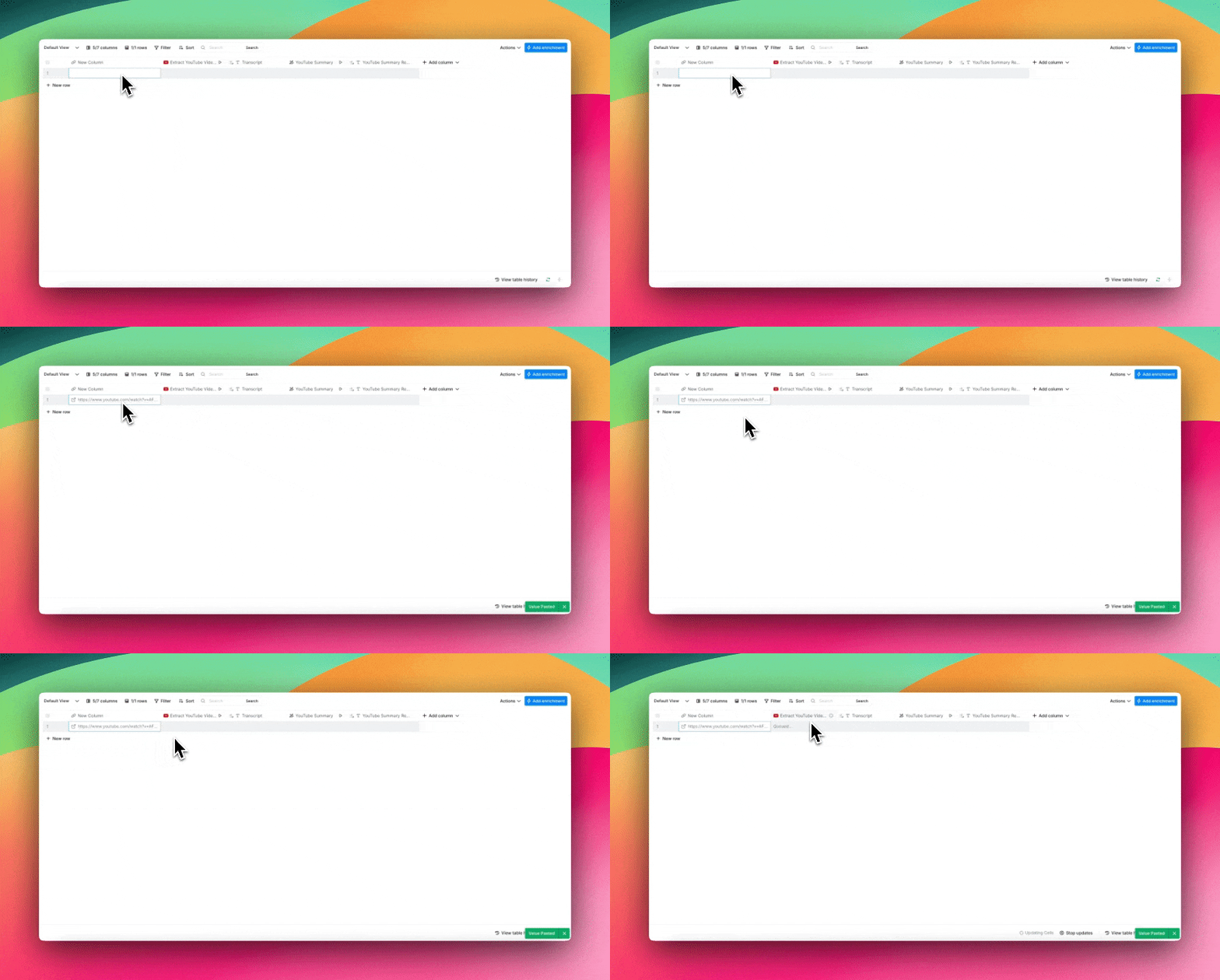
Step 2: Add Your Video URL
Paste any YouTube video URL into the first column. This template works with educational videos, music videos, and more. You name it.
Step 3: Let Clay Work Its Magic
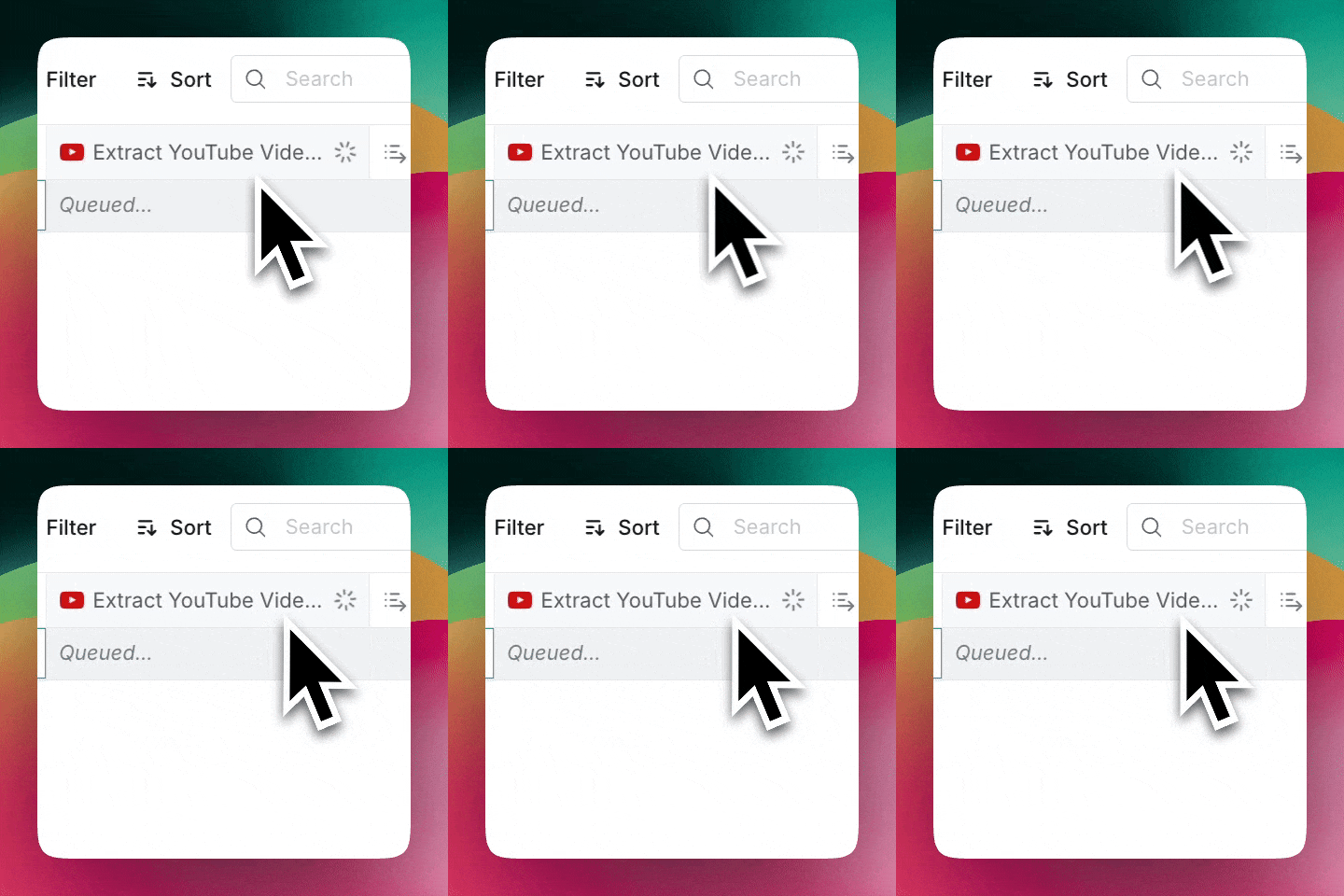
Clay will fetch the raw YouTube transcript for you, and deposit it in the "Transcript" column.
Step 4: Customize Your AI Prompt
In the "YouTube Summary" column, you'll find a space to craft your AI prompt. Here's the sample prompt that our team used:
Read the transcript from this YouTube video and write a step-by-step instructional blog post for my audience. The goal is to help them replicate the same steps outlined in the video, making it easy to understand and actionable. Include practical tips, helpful details, and examples where relevant. Make the tone friendly, professional, and beginner-friendly, and organize the content with headers and bullet points to enhance readability.
This sample prompt is automatically loaded in our template, but feel free to modify it based on your specific needs. Want a different tone? Need more technical detail? Adjust the prompt accordingly!
Step 5: Review Your Results
You'll see Clay's outputs in two places:
- Raw transcript in the "Transcript" column
- Blog-ready article in the "YouTube Summary Response" column
And voila! You've got an editable transcript and blog post ready to go.
Best Practices for Using Clay's YouTube Transcript Template
While Clay handles most of the heavy lifting, these tips and tricks can help you get consistently excellent results:
- Choose clear videos: Videos with minimal background noise and clear speech provide the best foundation for transcripts.
- Create a list of ready-to-use AI prompts: Test a few different AI prompts to find the most effective ones for your specific needs, and compile a list of your favorites for easy access.
- Review and edit: Review auto-generated transcripts for accuracy. It's worth the extra few minutes!
These simple steps will ensure your transcripts are always ready to shine, no matter how they fit into your content creation process.
Who Can Use This Template? (Spoiler: Everyone)
Create Educational Content
Transform your video library into high-ranking content that search engines love. Have any tutorials that are gathering dust? Turn them into comprehensive blog posts that capture search intent and keep readers coming back.
Maximize Marketing Assets
Think about that webinar you just hosted. Instead of limiting its reach, you can repurpose it as a blog or thought leadership byline. All you need is one cornerstone piece of content to work multiple marketing angles.
Build Better Documentation
Turn those product walkthrough videos into step-by-step guides. Feature announcements? More like instant documentation. Customer testimonials? Now they're written case studies. Turns out that your video library was a documentation powerhouse in disguise.
Transform Sales Materials
Capture your customers' on-camera success stories and craft them into persuasive testimonials. Alternatively, you can power up your product demos by transforming them into battle-tested sales collateral. One asset is all you need to fuel endless possibilities for your sales engine.
TLDR: How Automated Transcription Can Upgrade Your Content Strategy
No matter which team you're on, the goal is the same: Get more mileage from your video content.
With Clay, you can do just that by:
- Boosting SEO with transcripts-turned-blog-posts
- Reaching a wider audience through multiple content formats
- Improving audience comprehension with text
As the saying goes, let Clay help your content work smarter, not harder.
Frequently Asked Questions
How do I get a YouTube transcript for free?
You can use Clay's free template to extract any YouTube transcript automatically. Open the template, paste your video URL, and Clay fetches the raw transcript and generates a blog-ready article in seconds. No transcription service or sign-up beyond a free Clay account is required.
How do I transcribe a YouTube video to text?
The fastest way is to use Clay's pre-built template. Paste the video URL into the first column, and Clay pulls the auto-generated transcript into the "Transcript" column. From there, the AI prompt in the "YouTube Summary" column converts it into formatted text output automatically.
Can I export or copy the transcript to another format?
Yes. Once Clay populates the "Transcript" and "YouTube Summary Response" columns, you can copy the text and paste it into any file format you prefer, such as a Google Doc, Word file, or CMS editor.
Does this work on any public YouTube video?
Clay's template works with any YouTube video that has auto-generated or manually added captions available, including educational videos, music videos, webinars, and product walkthroughs.
How accurate are the transcripts?
Accuracy depends on the source video. Videos with clear speech and minimal background noise produce the best results. The post recommends reviewing and editing the auto-generated transcript before publishing, which typically takes just a few extra minutes.
Ready to Level Up Your Content with Clay?
Start using Clay's YouTube transcript generator today. Copy this template, paste your first video URL, and watch as Clay transforms your content creation process.
❓Questions about getting started? Check out this video walk-through.