























Sculptor Analyst Mode: Turning Context-Rich Data Into Actionable GTM Insights

Author
Author
Date
Feb 12, 2026

GTM teams iterate constantly. But iteration requires reflection, and that reflection often doesn't happen fast enough.

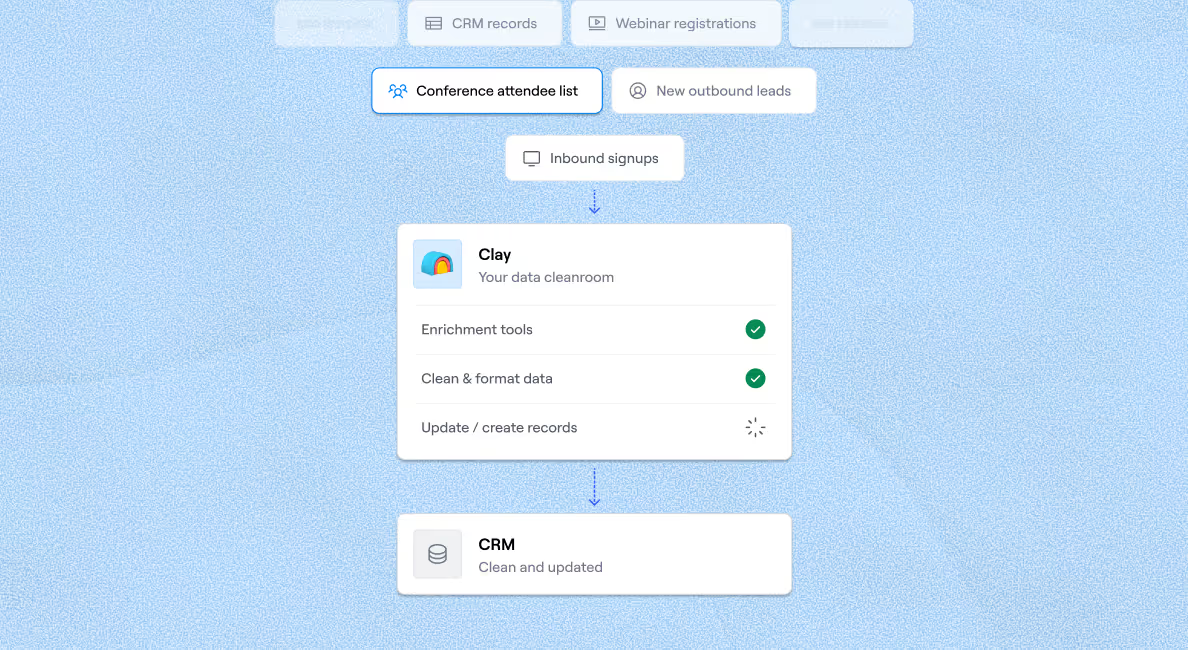
Answers to strategic questions like "what are our top 5 reasons for closed-lost deals last year?" or "how do my recent closed-won change my ICP definition?" don't live in one tool. They're spread across your CRM, Gong, data warehouse, and the enrichment data you've pulled into Clay. So you export a CSV, upload it into an LLM like ChatGPT or Claude, get an answer, then come back to Clay to act on it.

The problem: external tools don't understand your Clay tables as well as we do. They can't see the rich first and third party context nested within fields in each row, enrichment logic, or how columns relate to each other. They see flat data. 

Introducing Sculptor Analyst Mode

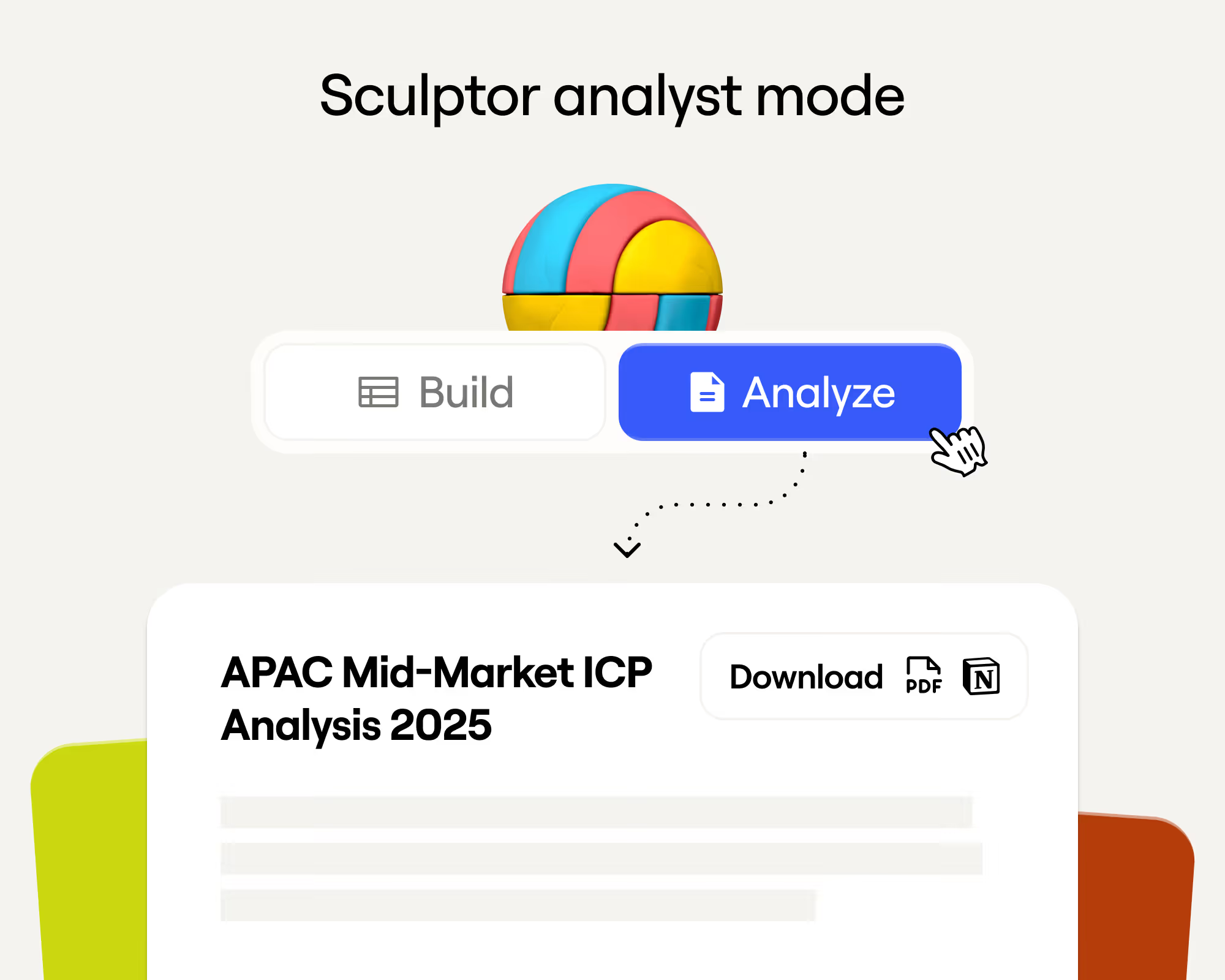
Sculptor Analyst Mode keeps analysis where your data lives, alongside your system of action. It's a version of Sculptor fine-tuned for business intelligence. Ask questions in natural language with no credit cost and get table-level insights: trends, outliers, compositions, with explanations you can export directly to a PDF or Notion document.

Your Clay table is more like a database. The deeper you go, the more nuanced insights you get. Take the previous closed-lost question: to answer it well, you'd first run AI categorization on each deal with Claygent to group them into loss reasons, identify re-engagement triggers, and generate recommendations. When you export that data to another LLM, you only get top-level responses. With Analyst Mode in your table, you retain the reasoning behind each categorization and can surface trends across all of it without leaving Clay and generate documents directly to share insights with stakeholders. 

How customers are using Sculptor Analyst Mode

 Since launching the beta, customers have generated over 500 docs across four use cases:

Define your market and ICP

Analyze customers, closed-lost deals, or event attendees to surface trends and define targeting filters.

Ilze Nartise at Printify, a print on-demand platform, used Analyst Mode to analyze historical won deals and surface ICP patterns she had never examined before. She pulled last year's closed-won deals from Salesforce and used Sculptor to identify customer segments and targeting opportunities.

"I took all the Salesforce data from all the won deals from last year and tried to analyze any patterns that are seen in different external data metrics—website traffic, social media followers for those accounts," said Nartise. "I also tried to understand how we can categorize companies based on ICP, what the distribution is like of ICPs in the won deals that we have."

The analysis revealed insights her team had never explored: "This ICP distribution, we never actually checked it before. That gave me a bit of curious learning and understanding that I shared with the team,” said Nartise. The output provided her Chief of Growth with actionable market segmentation insights and helped the sales team target similar customer profiles more effectively.

Example prompt: Generate a comprehensive ICP analysis document for [REGION] [SEGMENT] using this customer list. This document should define our ICP & top targeting filters to find more lookalikes of our best customers

Diagnose revenue performance

Summarize win drivers and loss reasons from closed-won and closed-lost deals.

AlertMedia, an emergency communication platform, struggled with inaccurate closed-lost data. Reps logged reasons through Salesforce picklists that didn't reflect reality. They used Clay to ingest Gong transcripts, emails, and opportunity notes, then ran Analyst Mode to infer more accurate loss categories and quantify how often each appeared. 

"The idea was if we can ingest all the conversations through Gong, the emails, the opportunity notes, can we come up with a better closed loss category than the reps can?" said Owen Chandler, the GTM Engineer at AlertMedia. "The categories that exist today in Salesforce don't necessarily fit, so we're trying to force the AI to fit the closed-loss reason into some of these categories."

Chandler used Sculptor to ask: "Looking at the categories and rationale, what are your recommendations on how we can adjust the categories to better fit what you're seeing in this table?" The output provided executive-ready summaries shared with leadership and the board, helping them understand revenue performance. 

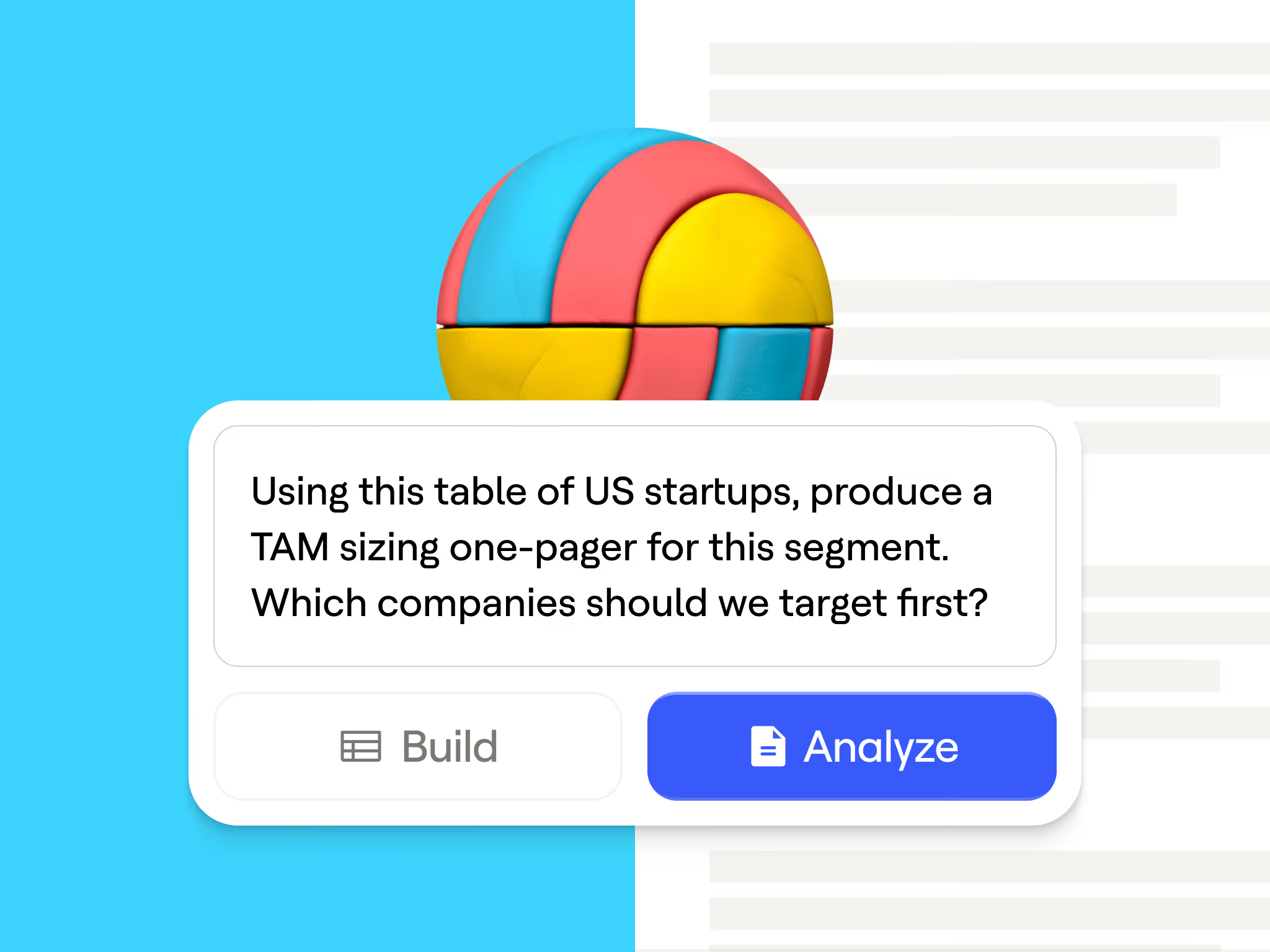
Example prompt: Analyze closed/lost deals and summarize the top loss reasons

Improve data reliability

Validate build accuracy before running expensive enrichments. Audit coverage and fill rates to catch issues early.

Sumair Shakir, founder of the agency Clayvengers, processes 4-6 hours of Clay data daily for SMB clients. He uses Sculptor Analyst Mode as a quality control gate before enrichments, analyzing distributions, fill rates, and match rates to catch gaps like missing cities or employee counts. 

"Worst case Sculptor shaves off 20% of my build time and best case it helps me build 30% better tables, which in my opinion is huge," said Shakir. "Before going into an enrichment or before going into some other action, I'm always cognizant of what's this gonna cost? Is it gonna be worthwhile?"

Previously, he exported CSVs to Excel or ChatGPT for manual analysis. Now Sculptor eliminates this friction, letting him validate data quality directly in Clay before spending credits on enrichments.

Example prompt: Audit this table’s enrichment coverage and identify the biggest match-rate gaps + fixes. 

Size and prioritize markets

Size opportunity across segments and rank by priority based on your business context.

Skydio, a security company serving enterprise and government, has a 49-person sales team covering multiple industries, geographies, and channel partners. They used Analyst Mode to update their territory rebalancing strategy across thousands of accounts.

"Sculptor gives me high-level analysis based off of these three or four important things that I care about,” said Victor Willison, Senior RevOps Manager at Skydio. “I care about total locations in a territory. I care about the annual revenue. I care about if we have an open opportunity with them. Sculptor can run that analysis extremely fast at high levels of accuracy."

They also use Analyst Mode to test different territory splits before committing to changes: "I'm telling it different ways I think about splitting territories. Sculptor comes up with the data. If it's a good idea, I kind of think it through further by reading it. Then I ask, what do you recommend? Gives me great recommendations."
Take targeted action with intelligence

Sculptor Analyst Mode helps you understand your GTM workflows and save time on iterations. "I find Sculptor saves a lot of time for me," said Willison. "Sculptor is really important for training. When I get a team I'll start recommending they use Sculptor as well."

Analyst Mode is available now for all Clay users. Open Sculptor, switch to Analyst Mode, and start using the prompts above.

Templates to get you started: 
Example Template: Sculptor for ICP analysis

Example Template: Sculptor for Closed-Lost Analysis

GTM teams iterate constantly. But iteration requires reflection, and that reflection often doesn't happen fast enough.

Answers to strategic questions like "what are our top 5 reasons for closed-lost deals last year?" or "how do my recent closed-won change my ICP definition?" don't live in one tool. They're spread across your CRM, Gong, data warehouse, and the enrichment data you've pulled into Clay. So you export a CSV, upload it into an LLM like ChatGPT or Claude, get an answer, then come back to Clay to act on it.

The problem: external tools don't understand your Clay tables as well as we do. They can't see the rich first and third party context nested within fields in each row, enrichment logic, or how columns relate to each other. They see flat data. 

Introducing Sculptor Analyst Mode

Sculptor Analyst Mode keeps analysis where your data lives, alongside your system of action. It's a version of Sculptor fine-tuned for business intelligence. Ask questions in natural language with no credit cost and get table-level insights: trends, outliers, compositions, with explanations you can export directly to a PDF or Notion document.

Your Clay table is more like a database. The deeper you go, the more nuanced insights you get. Take the previous closed-lost question: to answer it well, you'd first run AI categorization on each deal with Claygent to group them into loss reasons, identify re-engagement triggers, and generate recommendations. When you export that data to another LLM, you only get top-level responses. With Analyst Mode in your table, you retain the reasoning behind each categorization and can surface trends across all of it without leaving Clay and generate documents directly to share insights with stakeholders. 

How customers are using Sculptor Analyst Mode

 Since launching the beta, customers have generated over 500 docs across four use cases:

Define your market and ICP

Analyze customers, closed-lost deals, or event attendees to surface trends and define targeting filters.

Ilze Nartise at Printify, a print on-demand platform, used Analyst Mode to analyze historical won deals and surface ICP patterns she had never examined before. She pulled last year's closed-won deals from Salesforce and used Sculptor to identify customer segments and targeting opportunities.

"I took all the Salesforce data from all the won deals from last year and tried to analyze any patterns that are seen in different external data metrics—website traffic, social media followers for those accounts," said Nartise. "I also tried to understand how we can categorize companies based on ICP, what the distribution is like of ICPs in the won deals that we have."

The analysis revealed insights her team had never explored: "This ICP distribution, we never actually checked it before. That gave me a bit of curious learning and understanding that I shared with the team,” said Nartise. The output provided her Chief of Growth with actionable market segmentation insights and helped the sales team target similar customer profiles more effectively.

Example prompt: Generate a comprehensive ICP analysis document for [REGION] [SEGMENT] using this customer list. This document should define our ICP & top targeting filters to find more lookalikes of our best customers

Diagnose revenue performance

Summarize win drivers and loss reasons from closed-won and closed-lost deals.

AlertMedia, an emergency communication platform, struggled with inaccurate closed-lost data. Reps logged reasons through Salesforce picklists that didn't reflect reality. They used Clay to ingest Gong transcripts, emails, and opportunity notes, then ran Analyst Mode to infer more accurate loss categories and quantify how often each appeared. 

"The idea was if we can ingest all the conversations through Gong, the emails, the opportunity notes, can we come up with a better closed loss category than the reps can?" said Owen Chandler, the GTM Engineer at AlertMedia. "The categories that exist today in Salesforce don't necessarily fit, so we're trying to force the AI to fit the closed-loss reason into some of these categories."

Chandler used Sculptor to ask: "Looking at the categories and rationale, what are your recommendations on how we can adjust the categories to better fit what you're seeing in this table?" The output provided executive-ready summaries shared with leadership and the board, helping them understand revenue performance. 

Example prompt: Analyze closed/lost deals and summarize the top loss reasons

Improve data reliability

Validate build accuracy before running expensive enrichments. Audit coverage and fill rates to catch issues early.

Sumair Shakir, founder of the agency Clayvengers, processes 4-6 hours of Clay data daily for SMB clients. He uses Sculptor Analyst Mode as a quality control gate before enrichments, analyzing distributions, fill rates, and match rates to catch gaps like missing cities or employee counts. 

"Worst case Sculptor shaves off 20% of my build time and best case it helps me build 30% better tables, which in my opinion is huge," said Shakir. "Before going into an enrichment or before going into some other action, I'm always cognizant of what's this gonna cost? Is it gonna be worthwhile?"

Previously, he exported CSVs to Excel or ChatGPT for manual analysis. Now Sculptor eliminates this friction, letting him validate data quality directly in Clay before spending credits on enrichments.

Example prompt: Audit this table’s enrichment coverage and identify the biggest match-rate gaps + fixes. 

Size and prioritize markets

Size opportunity across segments and rank by priority based on your business context.

Skydio, a security company serving enterprise and government, has a 49-person sales team covering multiple industries, geographies, and channel partners. They used Analyst Mode to update their territory rebalancing strategy across thousands of accounts.

"Sculptor gives me high-level analysis based off of these three or four important things that I care about,” said Victor Willison, Senior RevOps Manager at Skydio. “I care about total locations in a territory. I care about the annual revenue. I care about if we have an open opportunity with them. Sculptor can run that analysis extremely fast at high levels of accuracy."

They also use Analyst Mode to test different territory splits before committing to changes: "I'm telling it different ways I think about splitting territories. Sculptor comes up with the data. If it's a good idea, I kind of think it through further by reading it. Then I ask, what do you recommend? Gives me great recommendations."

Take targeted action with intelligence

Sculptor Analyst Mode helps you understand your GTM workflows and save time on iterations. "I find Sculptor saves a lot of time for me," said Willison. "Sculptor is really important for training. When I get a team I'll start recommending they use Sculptor as well."

Analyst Mode is available now for all Clay users. Open Sculptor, switch to Analyst Mode, and start using the prompts above.

Templates to get you started: 

Example Template: Sculptor for ICP analysis

Example Template: Sculptor for Closed-Lost Analysis

More Articles