

































.avif)









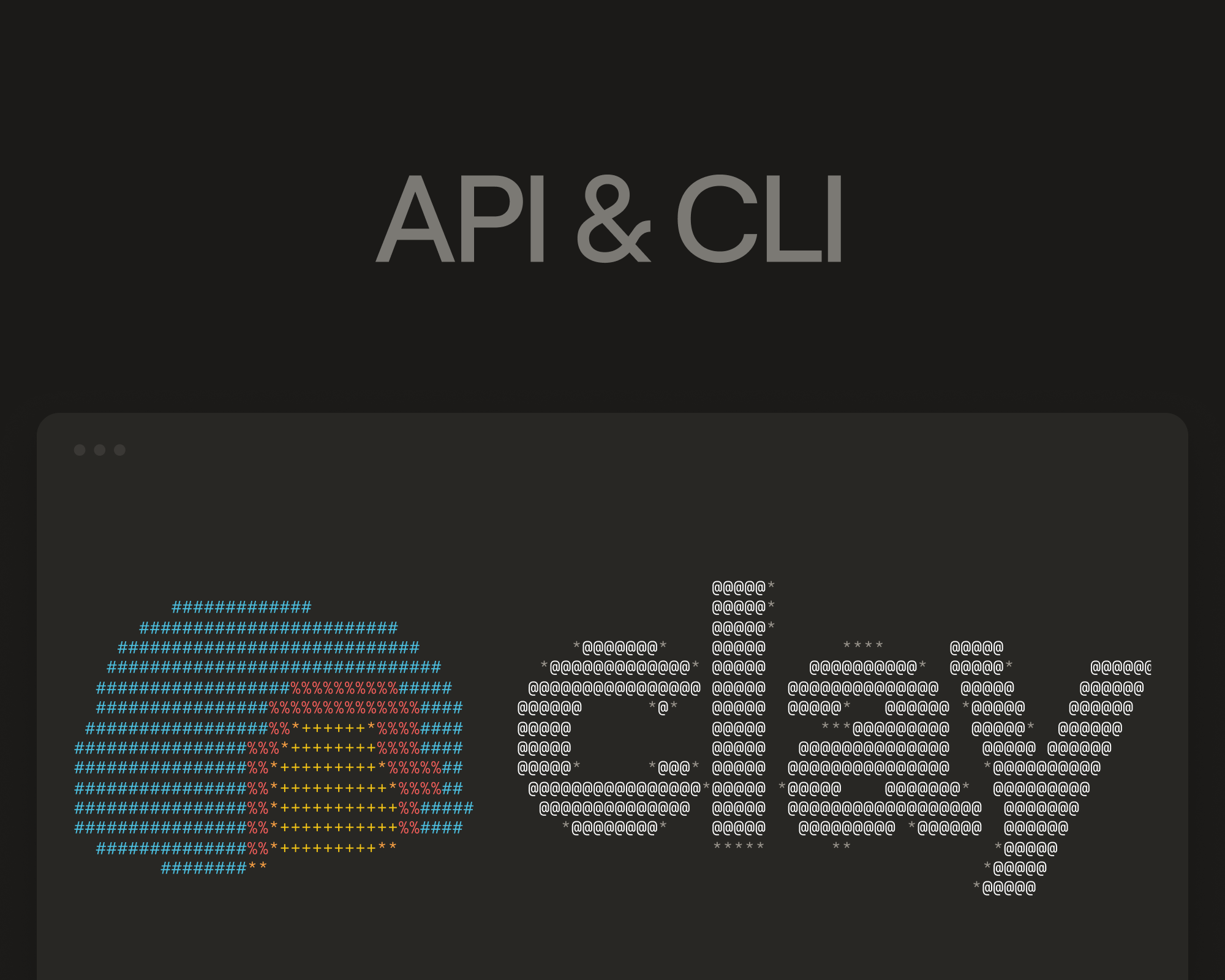
Agents are being put to work in nearly every industry and job function, and go-to-market is no exception. In July, we opened a beta of Clay’s Agent Plugin, which puts Clay’s API and CLI inside coding agents like Claude Code and Codex. As of September 15, it’s generally available to every customer at no extra cost.
To install the plugin, open your preferred coding agent and paste this prompt:
Set up the Clay plugin by following the steps in https://github.com/clay-run/agent-plugins
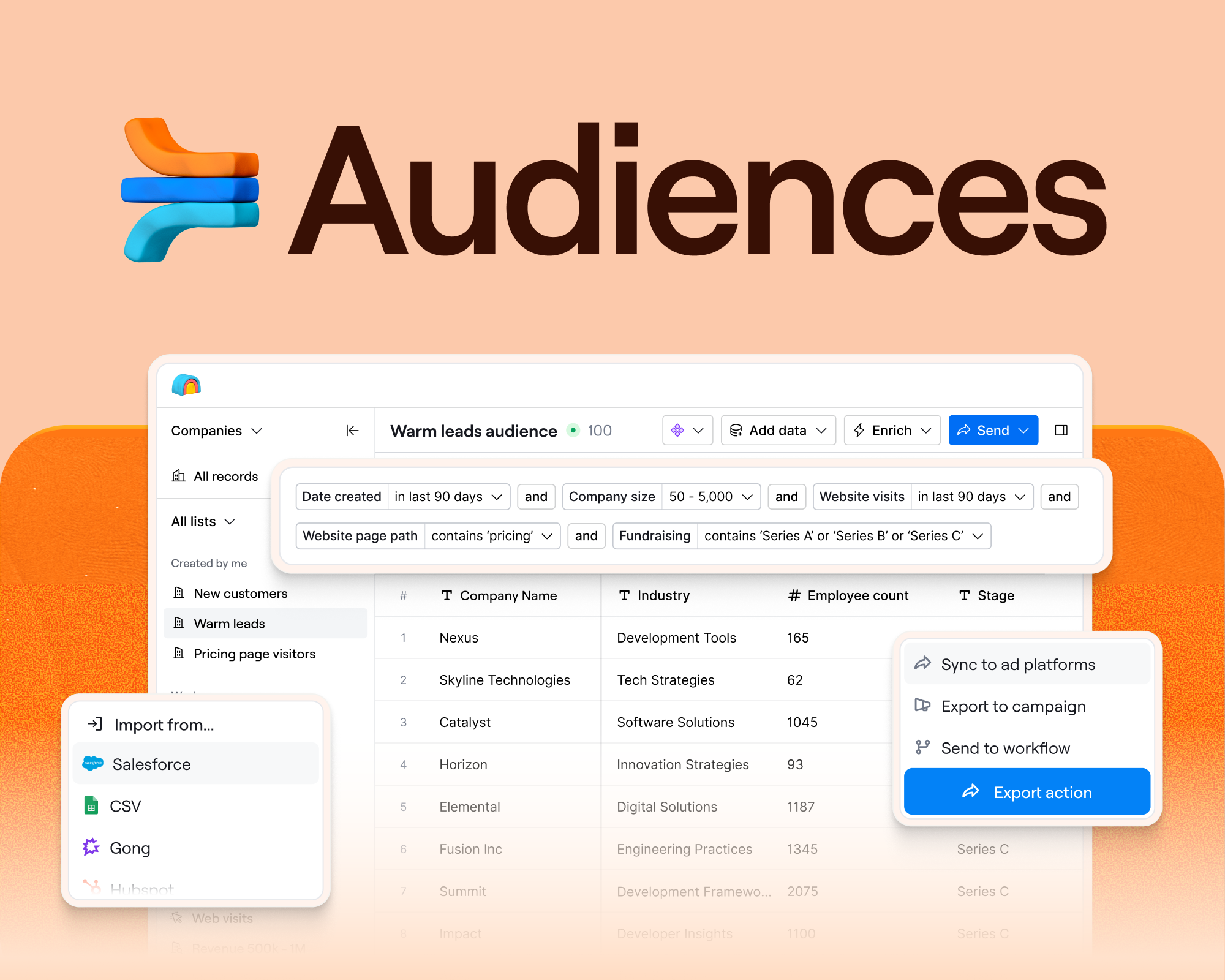
Sign in when it asks. From then on, that coding agent can search and enrich contacts across Clay’s 200+ data providers, pull records from Audiences, build and edit Workflows, create Sequencer campaigns, and query your tables, all from the terminal or code editor you already work in. You never have to open the Clay interface to build any of this, though everything you make is saved in Clay. That also means your teammates can open whatever you built and make their own edits.
GTM teams have always had to decide whether to buy their tools or build their own. Now that a coding agent can produce a working lead router or prospecting app for reps in an afternoon, some are choosing to build. But that first working version is rarely the hard part. Maintaining the tool once it’s live takes time: integrations break, auth expires, rate limits change, and data providers rename fields.
When you build with the plugin instead, Clay handles the data, enrichment logic, routing, and integrations. You can build your own revenue systems and rep tools on top of Clay without maintaining the infrastructure underneath them. During the beta, we watched customers build rep-facing apps backed by our API within days and turn campaign ideas into live workflows from the terminal. Ten people on our own team have built something with it too, across product, sales, ops, growth, and content. Watch each person’s demo to see the full build. If one of them sounds like a problem you have, install the plugin and build your own version in Clay.
What ten Clay team members built with the plugin
The ten builds below range from a bug bot that patches our outbound workflow to a dashboard that measures which executive LinkedIn posts reach target accounts. Carolyn Ann Jones, a Forward Deployed GTM Engineer on our professional services team, estimates that the inbound enrichment flow she rebuilt for a customer “would probably take you days” by hand, and hers was finished in minutes. Here’s what she and nine of her teammates made:
- A two-email Sequencer campaign aimed at the most technical contact at every stage-two account that has used Clay’s MCP (Matthew Quan, Product)
- A bug bot that reads Slack reports, finds the broken step in our outbound workflow, and applies the fix after a human approves it (Rana Banankhah, GTM Engineering Intern)
- An account research workflow that takes a domain and returns an outreach angle plus the Clay use case to pitch (Mopi Mopidevi, GTM Engineer, Sales)
- A shared prospecting workflow, built from one rep’s table, that finds and verifies contacts at an account and drafts an email to each one (Luca Prando, GTM Ops)
- An event follow-up workflow that enrolls attendees from a segment or a CSV into a personalized Sequencer campaign (Chris Viglietta, GTM Engineering Workshops Lead)
- A lead scanner app for events that enriches and routes a contact in seconds, so they can book a meeting with their rep on the spot (Spencer Chemtob, GTM Engineer, GTM Ops)
- A daily play that flags self-serve accounts showing enterprise signals and sends them to the right seller with a call script (Andrew Morris, Growth)
- An interactive org chart of an account’s leadership team, generated from one prompt (Alex Lindahl, Creator in Residence)
- A customer’s inbound enrichment workflow, rebuilt from a markdown file in minutes (Carolyn Ann Jones, Forward Deployed GTM Engineer)
- A dashboard showing which exec LinkedIn posts drew engagement from target accounts (Bhaumik Patel, Creator in Residence)
1. Build a targeted audience and a two-email sequence from a spoken prompt
Matthew Quan, Product at Clay, led the plugin’s launch. To show what the plugin can do, he built an Audience and a two-email Sequencer campaign in Claude Code from a single instruction, which he spoke out loud rather than typed:
"I want you to do two things with Clay. The first is I want you to actually build an audience. And to do that, find all of the companies that are in stage two of our sales process. Filter it down to companies that have actually used our MCP before, and then once you’ve isolated those accounts, I want you to find the most technical person at each of those accounts. Once you’ve done that, the audience building is complete. I want you to move on to step two, which is actually building the sequence.
So the sequence will have two emails.
- The first email should say, ’Hey, I saw you’ve used our MCP. I thought you might be interested in our plugin that will allow you to actually build things much quicker.’
- The second email, if they haven’t responded, should be a follow-up; basically, say, ’Just checking in.’ And then additionally I want you to call out that the Clay plugin has just been released to general availability."
The agent searched Audiences for the accounts, found the CLI command for sequences, pulled the audience into a new campaign, wrote both emails, and returned a preview link. The audience and the campaign were both in Clay, ready to launch.
The plugin isn’t only for building. Once something is live, you can also use it to check how that workflow is running and fix what’s broken. For Matthew, that meant asking Claude Code for a status update on the workflow that routes every new deal at Clay, looking for failures and anything worth improving (faster than clicking through each node in Clay). The agent reported four failures across 196 runs, explained each, and provided a short list of improvements. From there, he can ask the agent to make the fixes.
2. Let a bot investigate Slack-reported bugs and fix the workflow once you approve
The workflow that sends all of Clay’s AI-generated outbound is enormous. Before the Clay CLI existed, debugging it meant clicking into each node by hand. Rana Banankhah, a Stanford student who interned on our GTM engineering team this summer, built a bug bot so nobody has to.
Take a recent example: someone noticed that outbound emails still said Clay had 160 data providers when the real number is 230. The loop works like this:
- Someone flags the bug through a Slack form.
- That triggers an agent, which uses the Clay CLI to inspect the outbound workflow and finds the spots in the AI prompt that still say 160.
- The agent proposes a fix, shown as a diff that changes 160 to 230 in each of those places.
- A human on the Clay team, in this case Rana, reviews the diff and clicks accept.
- The bot runs again and applies the five changes through the CLI, so the corrected prompt is live in the workflow right away.
All Rana had to do was press one button.
3. Research an account and get a recommended outreach angle from one domain
Vaibhav “Mopi” Mopidevi is a GTM Engineer on Clay’s sales team, and like every rep, he researches accounts before reaching out. He built that research as a Clay workflow, so anyone on the team can run it from their coding agent by typing a domain. The results come back in that same window a few minutes later.
To kick off his research process, Mopi opens OpenAI Codex in his terminal and gives it a simple request:
“Hey Clay, using my workflows on account research, go ahead and research alloy.com and varonis.com.”
Codex uses the Clay skill that comes with the plugin to locate his existing account research workflow in Clay and feed it both domains. The work itself runs in Clay while he stays in the terminal. The workflow normalizes each domain, pulls active GTM job openings, sales headcount growth, marketing headcount growth, and technographic data, then writes a brief covering which Clay products fit, how they tie to the company’s priorities, an outreach angle, and a recommended demo.
For the company Varonis, the output flagged a batch of open SDR roles and a Snowflake partnership announced a couple of weeks earlier. Clay integrates with Snowflake natively, which makes that partnership a relevant signal for his outreach.
4. Turn one rep’s prospecting table into a workflow the whole team can run
Sabrina Glaser, a GTM Engineer on Clay’s enterprise and strategic sales team, built a table that finds the right contacts at an account and writes each of them a personalized email. The sequence generated so much pipeline for her that Luca Prando on Clay’s GTM Ops team wanted everyone to have it. He used the CLI to turn it into a workflow.
His prompt was simply a link to her table plus context. He told the agent to take a company domain, enrich the account, find the right people, verify their work emails, and write outbound copy for each person, all inside one workflow. He also listed the outputs he wanted:
“Title, work email, Use AI Subject, Use AI Email 1, Use AI Email 2, Use AI Email 3, Reason Why”
The agent returned a skeleton of the proposed workflow and a few questions. After some back-and-forth and a couple of errors, the final version in Clay looked a lot like that first outline. Reps now trigger it from their chat tool by dropping in a domain and get personalized emails back for that account’s contacts.
Sabrina’s original table is a four-agent prospecting system that cut her account research from 85 minutes to five, and the whole sales team now runs it as a Workflow that reps can call from their coding agent or any chat tool. How Clay Runs Cold Outbound to Enterprise Accounts walks through each agent and how ops scaled it.
5. Automate event follow-up from the attendee list to personalized emails
At Clay, we run a lot of events and workshops, and post-event communication is how we keep helping (and selling to) attendees after the session ends. Chris Viglietta leads Clay’s live GTM engineering workshops and has hosted around 50 events in the past nine months. That means around 50 rounds of follow-up. Chris built a workflow that handles his, and he built it by talking to Claude Code with the plugin installed:
“Hey, I want you to take any segment that gets added to my workflow or take in a CSV file, and I want you to look that person up inside my Audiences and add them to my outbound campaign.”
The workflow that came back in Clay has two entry points:
- A trigger for when someone joins a segment in Audiences.
- A trigger for when he uploads a CSV of attendees.
Either way, it looks up the contact in Audiences and enrolls them in his Sequencer (Clay’s native outbound tool) campaign. When he opens Sequencer, personalized drafts for each attendee are already waiting, ready to send once the event ends.
6. Scan a lead at an event and book the meeting before the conversation ends
Spencer Chemtob, a GTM Engineer on our GTM Ops team, also works on event follow-up. He had a different idea for how to handle it, and Clay is flexible enough to build something quite different from Chris. Instead of having field marketers follow up after the event, he wanted to give them a way to do it during the event itself.
The lead scanner app he built with Clay’s CLI runs Clay’s enrichment and routing logic while the prospect is still standing there, and the team used it at Dreamforce and Unbound this month.
Here’s what happened when Spencer tried it out with Jon Tobias, our Marketing Producer at Clay:
- Spencer (playing a rep) scans Jon’s LinkedIn QR code with the lead scanner app.
- The app calls a Clay function through the API and returns his name, company, email, and LinkedIn profile.
- Spencer adds a note and submits the lead, tagged to the event.
- The lead runs through Clay’s lead scanning table and gets qualified and routed.
- The app shows which Clay rep Jon has been routed to (Marilin), and Jon gets a QR code to book a meeting with her on the spot.
Spencer didn’t have to rebuild any enrichment or routing logic for this. The app calls the same Clay workflows our team already uses for inbound leads, through the API. The rep can focus on the conversation while Clay handles the rest.
7. Find self-serve customers with enterprise potential and hand them to sellers
Clay’s GTM leaders asked Andrew Morris on our Growth team to find our next enterprise customers inside the current customer base: self-serve accounts that have outgrown, or are about to outgrow, self-serve. He built a play in Cursor that finds those accounts daily and routes them to a seller.
He started with two signals that predict expansion:
- Whether an account buys extra credits (top-ups).
- Whether it’s pacing to use 70% or more of its plan’s allocation.
He scoped the play in chat with Cursor and the Clay plugin. Before building, he asked for a mermaid diagram of the data flow, showing the suppression and routing logic and the outputs, to confirm every lead passes through the right checks and balances before it reaches a seller.
Once the diagram looked right, the agent built the workflow. It runs like this:
- The trigger is usage expansion on a self-serve account.
- The workflow checks Salesforce and applies the suppression rules.
- Anything that passes gets matched to its account owner and checked for outreach eligibility.
- The contacts are added to Gong with a script for the seller.
Andrew had a working first version within minutes, and the play was live within hours.
8. Map an account’s leadership team into an interactive org chart
In a previous role as a sales rep, Alex Lindahl dreaded being asked by a VP of Sales to map org charts for his key accounts. It took forever, and nobody kept the charts updated afterward. Now Clay’s Creator in Residence, he wrote one prompt that does the same work in minutes.
The prompt has Codex call the Clay CLI to pull contacts for whichever account you name and research the team you’re selling into. It then generates a web page with a full org chart. For this example, the page showed about 30 people across several layers, each color-coded by role in the deal: executive buyer, decision maker, champion, or influencer. You can update the labels as the deal progresses.
The chart is editable: you can drag people around as you learn who reports to whom, open a profile to grab an email, screenshot it for a slide, or export everyone as a CSV. If someone is missing, ask the chat for more contacts, and they get added. Alex estimates it gives reps an hour back every time.
9. Rebuild an inbound enrichment workflow from a markdown file
Carolyn Ann Jones is a Forward Deployed GTM Engineer at Clay, which means she’s embedded with our customers and builds alongside them. One of those customers needed their inbound enrichment flow rebuilt from scratch. This is challenging because inbound is full of edge cases: a personal email address on the form, a competitor requesting a demo, a partner account that should never be routed to sales. Carolyn did it in minutes, in three steps.
- She asked the customer for a markdown file describing their old inbound lead enrichment flow, with every rule and exception.
- She gave Claude Code the file and one instruction: “I want to build a workflow using this markdown file,” plus the Clay space to build in.
- Claude Code created the nodes and wired them together according to the rules in the file, while she watched the workflow assemble in Clay.
The finished version had a suppression gate for the edge cases, handling for when a lead hits one, Salesforce lookups, enrichments, ICP scoring, and assignment logic. Carolyn estimates that building this manually would take days for a working version, and even longer for one that works perfectly.
10. Measure which employee LinkedIn posts reach your target accounts
Clay employees post about our launches a lot, and Bhaumik Patel, another Creator in Residence at Clay, wanted to know whether those posts were reaching people who might buy Clay. He used the Clay CLI in Claude Code to build a dashboard in a few minutes to find out.
In Claude Code, he asked the agent to identify who was posting, how often, and which posts went most viral. Using the Clay CLI, it gathered the data into a Clay Audience and produced a leaderboard of the most viral posts.
But raw engagement counts don’t say much about pipeline, so he added a second step. He matched the engagement data against an account tier list stored in Snowflake, which showed which posts were drawing engagement from target customers rather than just the most engagement overall. The finished dashboard lists every exec post next to the engagement it got from accounts we care about, all of it built from the terminal.
Install the Clay Agent Plugin and build your first workflow
Most of these builds began with a paragraph typed (or spoken) into a terminal, plus whatever the person already had: Luca pasted a link to a table, Carolyn pasted a markdown file. The agent asked a few questions back, and they fixed what came out together. Everything they made ended up in Clay, where the rest of the team can open it and see each run without asking the builder for help or filing a ticket with engineering.
To build something of your own, whether that’s a workflow in Clay or an app for your reps, install the Clay Plugin and show us what you build.







.png)



.avif)













.avif)












.avif)