
As a small business owner, you have to do it all. You handle everything from social media to pricing to following up with prospects. And that work rarely fits into a neat 9-to-5 day; it bleeds into evenings, weekends, and family time. Juggling all those hats often means you miss opportunities or leads go cold.
With fewer resources and tighter budgets than larger companies, small businesses often invest in new technology last. You need tools that handle the repetitive work, like weekly reports, invoice reminders, and lead follow-up, without needing a technical person to set them up.
Claude for Small Business takes over your weekly reporting and admin. Clay, one of its built-in connectors, finds and enriches new customers and turns that work into a prospecting workflow. You can do all of it from Claude. In this guide, you’ll learn how to run Claude for Small Business for weekly reporting, how to find and enrich new customers with Clay’s MCP, and how to turn it all into a system that keeps your pipeline full
Watch the replay of our Build Your Growth Engine with Clay livestream. The episode walks you through how to use Claude for Small Business with Clay. See the entire workflow and hear from Anthropic’s Jaskirat Gaelan and Clay’s Software Engineer, Dane Williams.
Small businesses need a growth system
Growth shouldn’t happen only when you have a spare hour. While you might not be able to hire an employee to focus on growth, you can make the most of your time with Claude for Small Business.
Think of Claude for Small Business like an AI new hire. You’ll start by giving it the context it needs to get going using plain language and prompts in Claude. It does the work, and you’ll oversee it before anything is sent, posted, or paid.
Workflows can also run on a schedule. A one-page report on cash, sales, and pipeline can be waiting every Monday morning, and inbound leads that come in overnight or on a holiday can get a drafted reply within minutes.
Run your business with Claude for Small Business
What comes in the plugin
Claude for Small Business is a plugin that is free to install on any paid plan, including Pro, Max, Team, and Enterprise. It has a package of 43 workflows and 37 connectors — such as Clay — that were created after surveying thousands of small business owners. Anthropic asked questions like, “What workflows do you use most often?” to determine which tools would have the most impact for business owners.
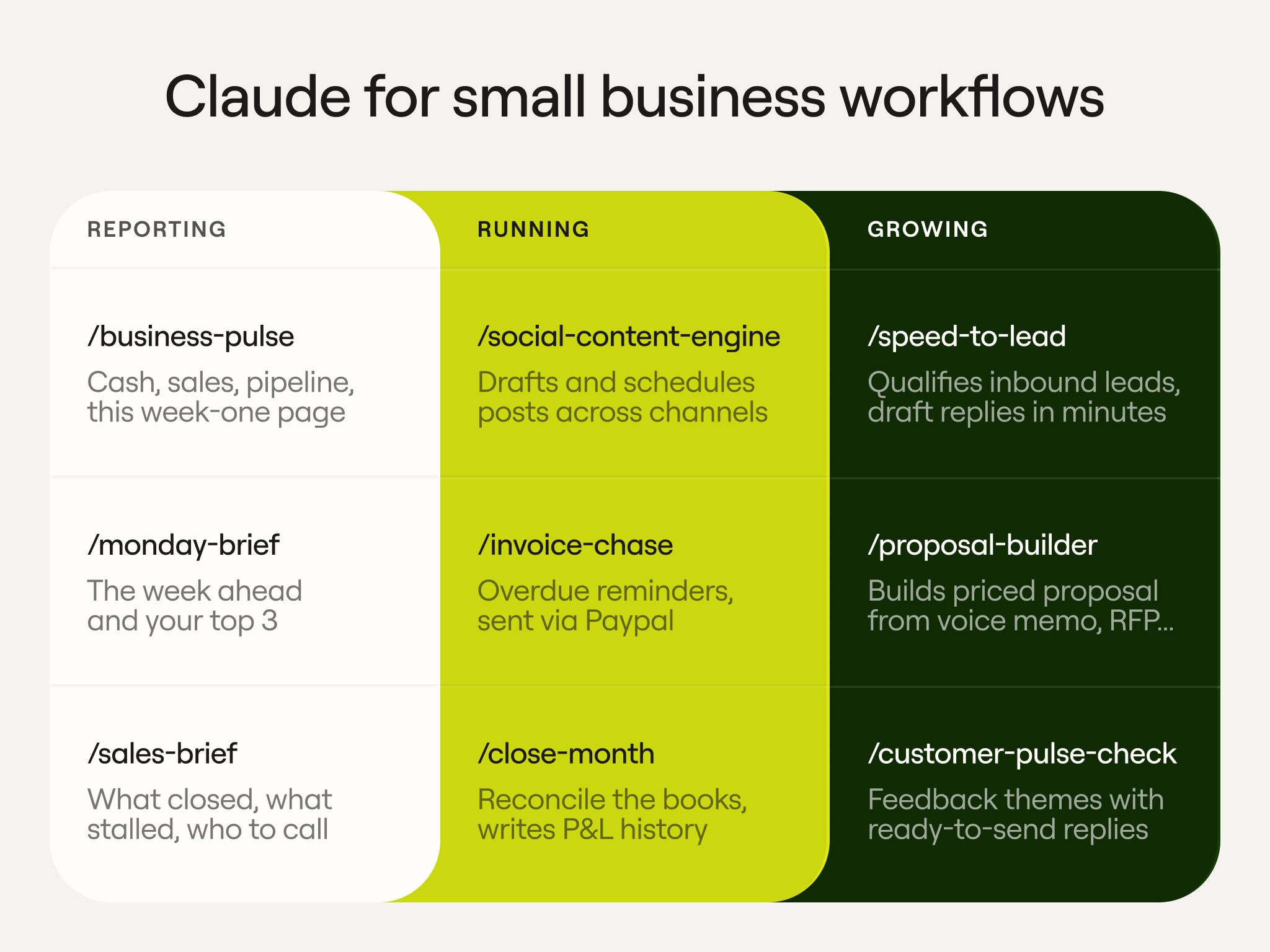
The included workflows fall into three groups:
- Reporting on the business, such as a weekly brief, your latest sales information, and updates on cash, sales, and pipeline.
- Running the business, such as social media posts, following up on overdue invoices, and reconciling your books.
- Growing the business, such as qualifying inbound leads, drafting emails and proposals, and conducting a customer pulse check.
You’re not limited to one business, either. By setting up a project for each business and providing custom global instructions, you can use Claude for Small Business for as many brands as you have.
Install Claude for Small Business
To get the plugin up and running within Claude:
- Navigate to Customize
- Select Plugins
- Search for Small Business and select Install
- Type and enter /smb-onboard to run the guided setup and tailor the plugin to your industry and size
Case study: How Claude helps a small furniture store
Bedroom & Sofa Discounters in California has been in business since 2001 with a 24,000 square-foot showroom, 5-10 employees, and no technical staff. Since the owner attended a Claude for Small Business workshop in June 2026, the store has saved about 23 hours of work and $3,000–5,000 in costs each month.
For the owner, Sundays used to be for catching up on the business; now they’re for family.
They have multiple workflows running, including:
- margin-analyzer, to ensure salespeople aren’t bargaining down to a loss
- business-pulse, a report every Monday morning
- proposal-builder, when needed
- job-post-builder, when hiring
- close-month, the 25th day of the month, every month to get ready for the bookkeeper
- social-content-engine, both a weekly and monthly run
Your business data stays yours
Data security is a top concern for business owners when onboarding new technology.
This is how Claude keeps your data safe:
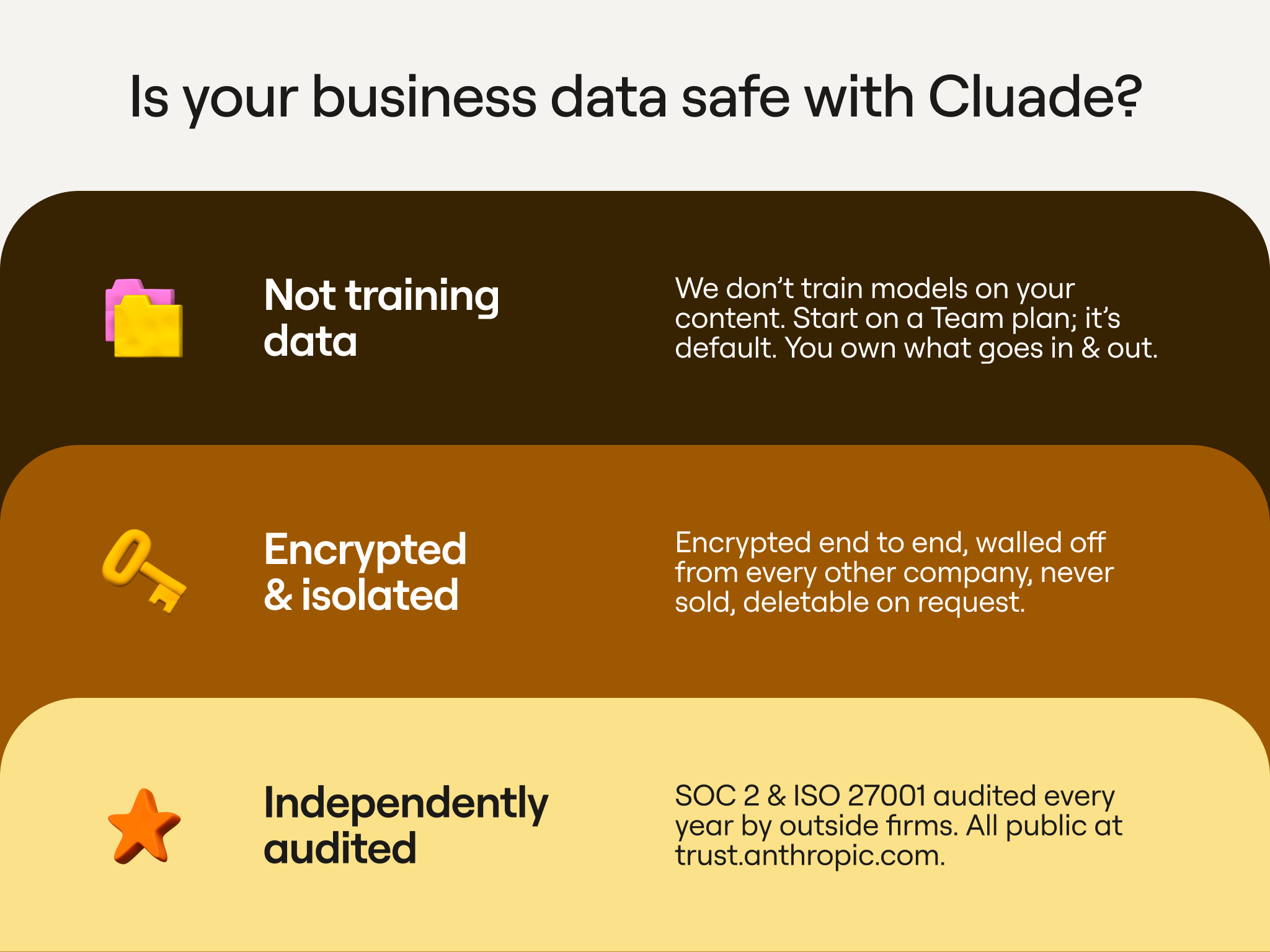
- Your business data will not be used to train Claude’s models, and that’s the default starting with the Team plan.
- All data is encrypted end-to-end, will never be sold, and can be deleted upon request.
- Anthropic is audited for SOC 2 and ISO 27001.
Find and enrich new customers from Claude chat with Clay
Clay is the infrastructure for go-to-market. We pull data from more than 150 providers, along with AI web research and signals like hiring and headcount growth, so you can get revenue, tech stack, open jobs, and verified work emails and phone numbers for the companies and people you want to reach.
You can also bring in your own data by connecting your CRM of choice or uploading a CSV. From there, you build Workflows and agents that run the same steps on a schedule. Then Clay acts on the results, such as writing a personalized pitch with AI, sending emails through Sequencer, or syncing records to your CRM.
Two ways to use Clay with Claude
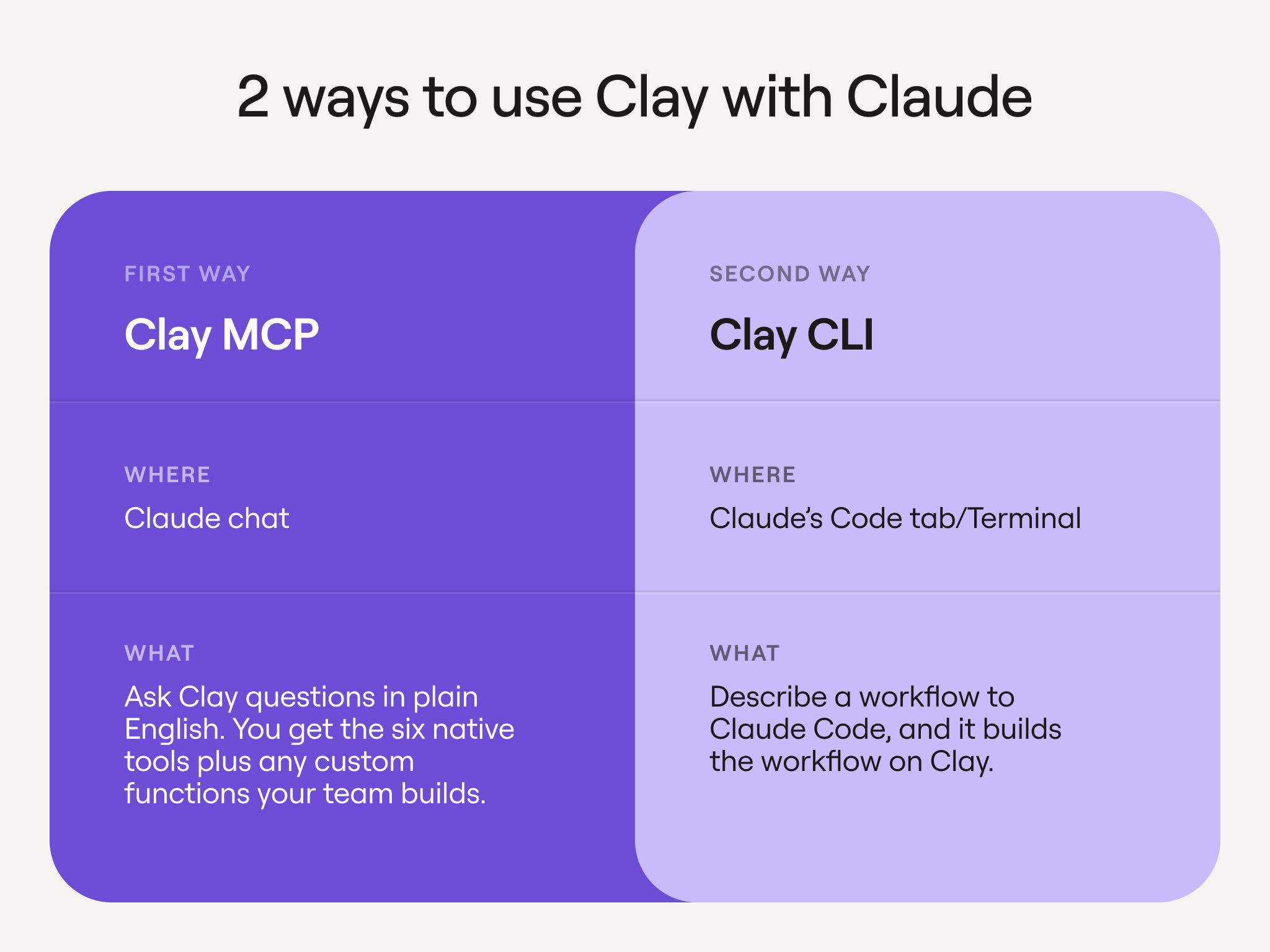
Clay works with Claude in two ways: the Clay MCP and the Clay command-line interface (CLI).
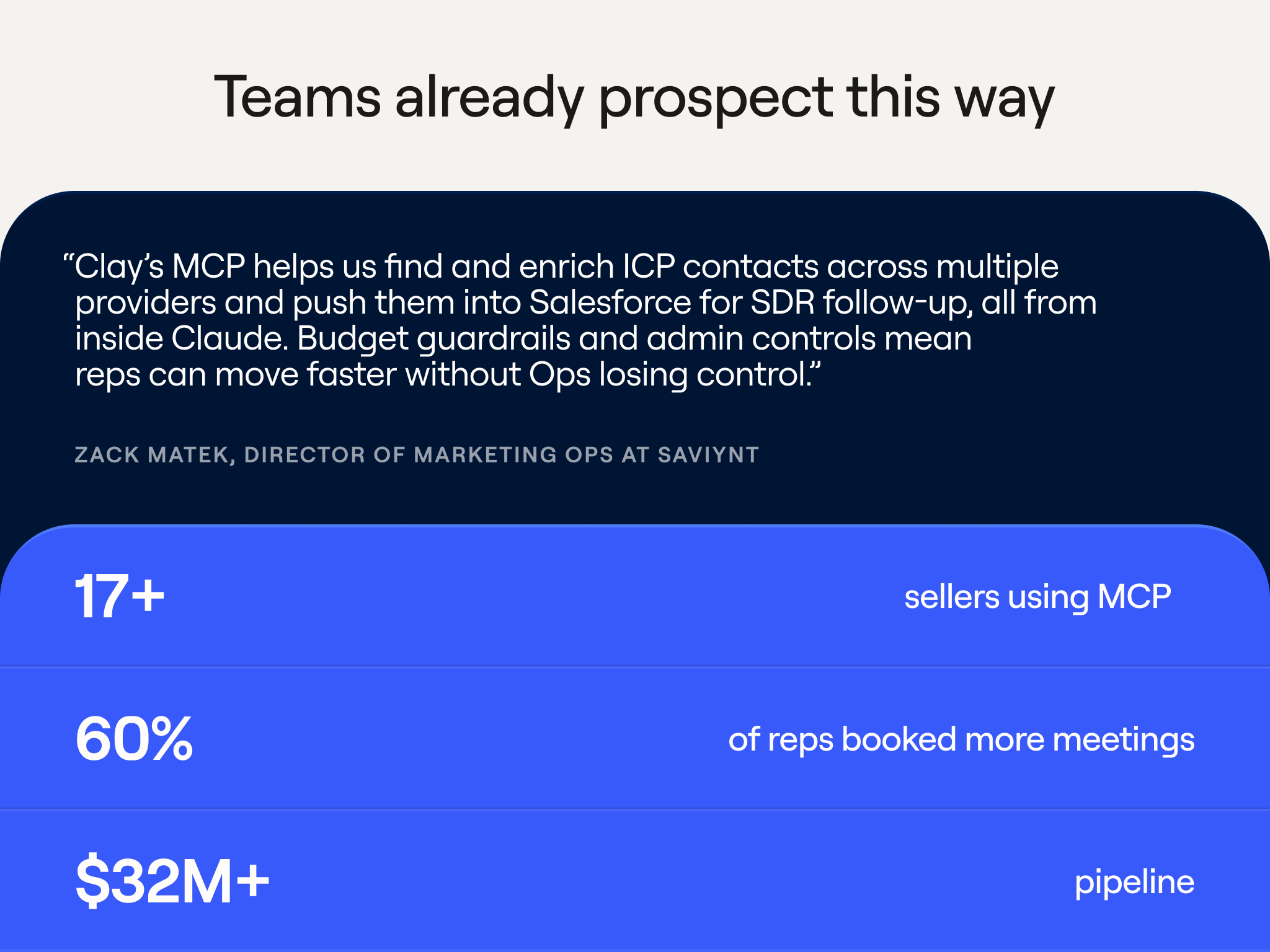
- The Clay MCP works within Claude chat. It’s how you can ask Clay questions in plain English about your business data. It also finds and enriches companies and people you don’t have yet.
- The Clay CLI is used within Claude Code. You can describe the workflow you want to Claude Code, and it will build it right in Clay.
Six native tools, plus your own custom functions
Clay’s MCP includes six useful built-in tools, plus the ability for your team to create custom functions.
These six tools fall into three categories:
Find
- Find companies by searching Clay’s company database in plain English
- Find people by searching for the right people to contact at those companies
Enrich
- Enrich company data with points like revenue, tech stack, open jobs, and headcount growth
- Enrich people by getting verified emails and phone numbers
Know your accounts
- Ask questions across all accounts about companies and people
- Look up workspace records to check whether someone is already in your workspace before reaching out
Build it yourself
You can also create your own functions to turn repeat steps and your best playbooks into a function anyone can run.
The prospecting workflow, step by step
We’ll take you through how to set up a prospecting workflow using Claude for Small Business and Clay. This will all take place within Claude chat.
1. Connect Clay in Claude chat
To set up Clay with Claude chat, follow these steps:
- Select Connectors
- Select Browse Connectors
- Search Clay
- Connect
- Authorize
This will connect those tools we mentioned to Claude. If this is your first time using Clay, you’ll be guided to sign up.
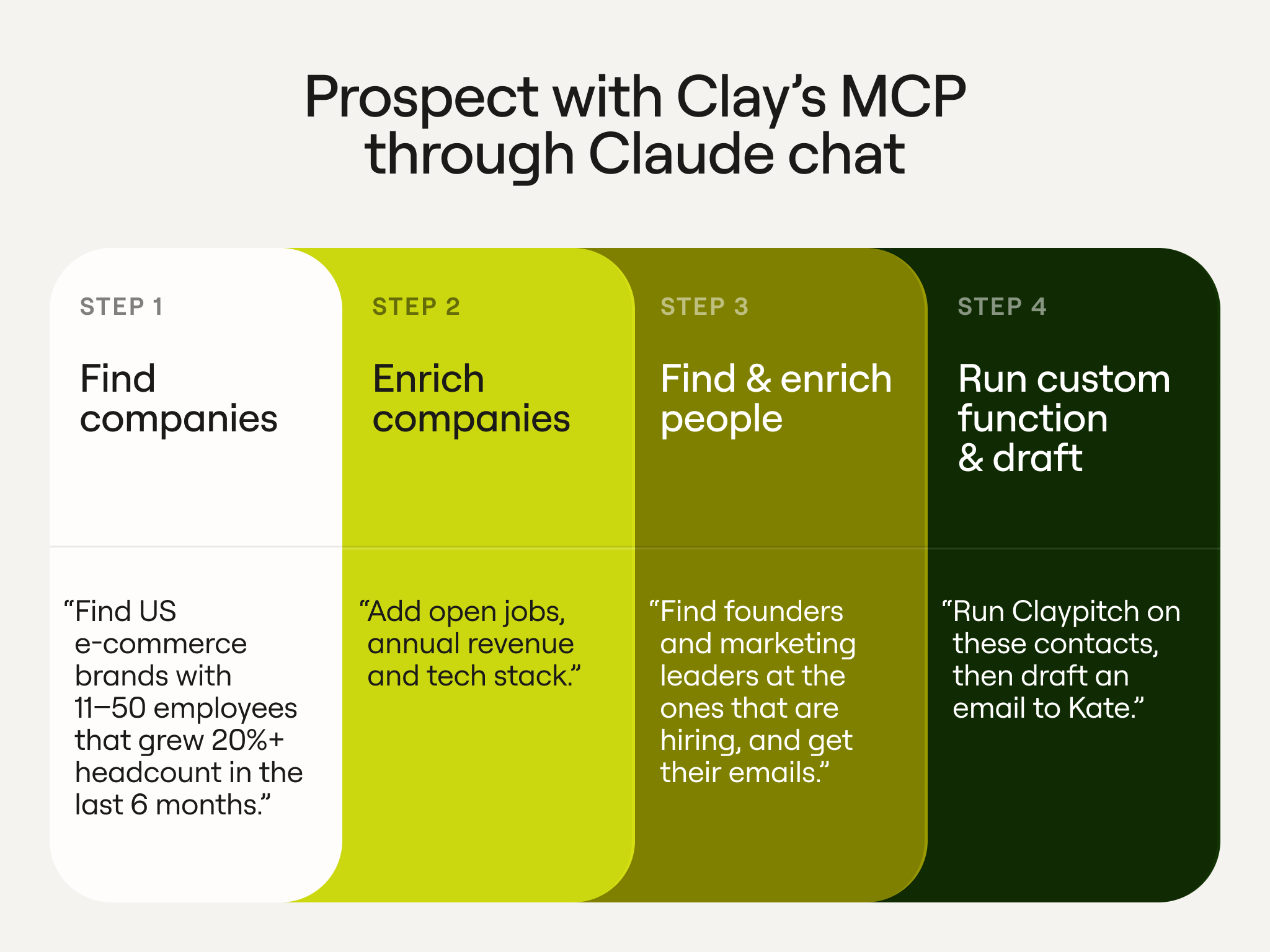
2. Find companies
Next, you’ll ask Claude to find companies that fit your parameters by calling on Clay’s companies database.
Example prompt:
Find me e-commerce companies with 20 to 100 employees that grew headcount 20% or more in the last 12 months and show it to me in the Clay widget.
3. Enrich the data
You’ll have a table of companies in the Clay widget that fit your parameters. You can further enrich this data with Clay right in Claude.
When you sign up for Clay, you get out-of-the-box access to a variety of data points, including work emails, company addresses, employee count, revenue, tech stacks and more.
At the bottom of the widget, you can choose extra data points to add to the table. For example, open jobs show which companies are hiring, which is usually a good time to reach out. Or you could add revenue, which gives you an idea of which plan a company might fit.
4. Find the right people
We’ll narrow down which people in the table are the best targets to reach out to.
Ask Claude to find people at the listed companies that you’d want to reach out to, such as revenue leaders.
Example prompt:
Can you find me people at companies that are hiring who are founders or have a sales leadership title, and show them in the Clay widget?
5. Get emails and draft your pitch
At the bottom of the widget, you’ll see a button for Get Work Email. Select this to prompt Clay’s contact database and find the work email of your prospects.
You can also ask Clay to find further details, such as work history and thought leadership, to craft your email. Or, use Clay’s personalized pitch function to automatically draft a pitch tailored to a specific person.
Example prompt:
Can you draft an email to [contact] from the list using the personalized pitch?
You’ll have a customized email draft ready to send. You can copy and send it, or even connect your email to Claude to send it directly from the interface.
This workflow is great for one-off emails, but if you use the Clay CLI, you can build repeatable workflows your whole team can use.
Turn prospecting into a workflow that runs every week
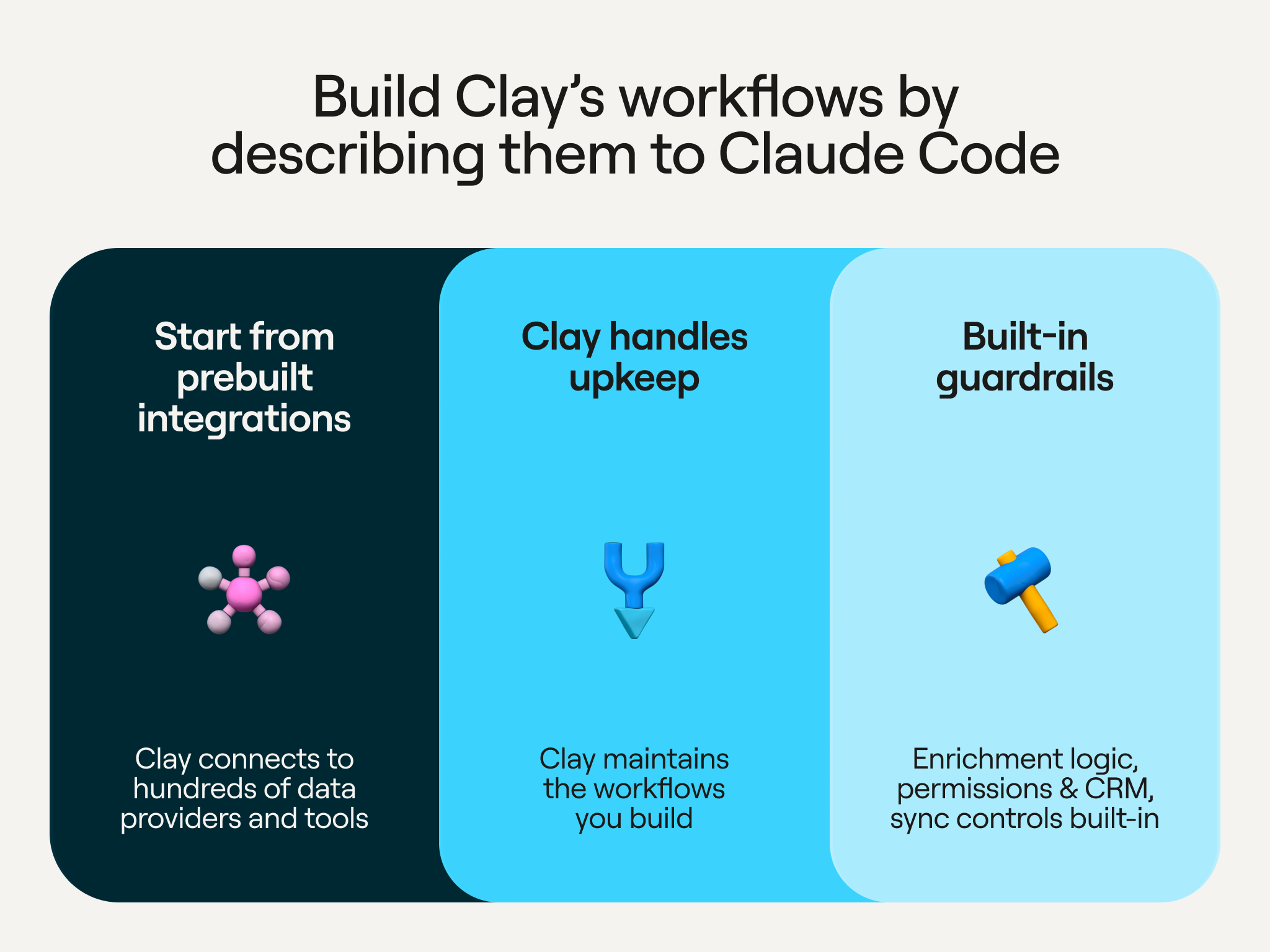
Using Clay’s CLI, you can build workflows in Claude Code by simply describing them. You provide the instructions in plain English — such as who to find, what data to add, and what to do with the results — and Claude builds the workflow.
Clay handles everything after that. We maintain the workflow, let you see each run, and include guardrails for enrichment logic, permissions, and CRM sync. Once a workflow is built, you can run it again and again, from Claude chat through the MCP or from anywhere else you need it.
Let’s look at how to build a workflow that finds relevant prospects and sends a customized email sequence.
1. Set up Clay’s CLI
To get started with Clay’s CLI, follow these steps:
- Open the Code tab in Claude
- Install the Clay CLI by going to clay.com → Product → CLI/API
- Click “Install the Clay plugin to start building” and copy the text: “Set up the Clay plugin by following the steps in https://github.com/clay-run/agent-plugins”
- Paste and run the text in a Claude Code tab
2. Add the ICP Sequencer Workflow
Next, we’re going to add the skill to Claude that will allow you to create saved, repeatable workflows.
- Find the ICP Sequencer Workflow in Clay’s Marketplace
- Select Open in Claude Code
- Ask Claude to install and run the skill
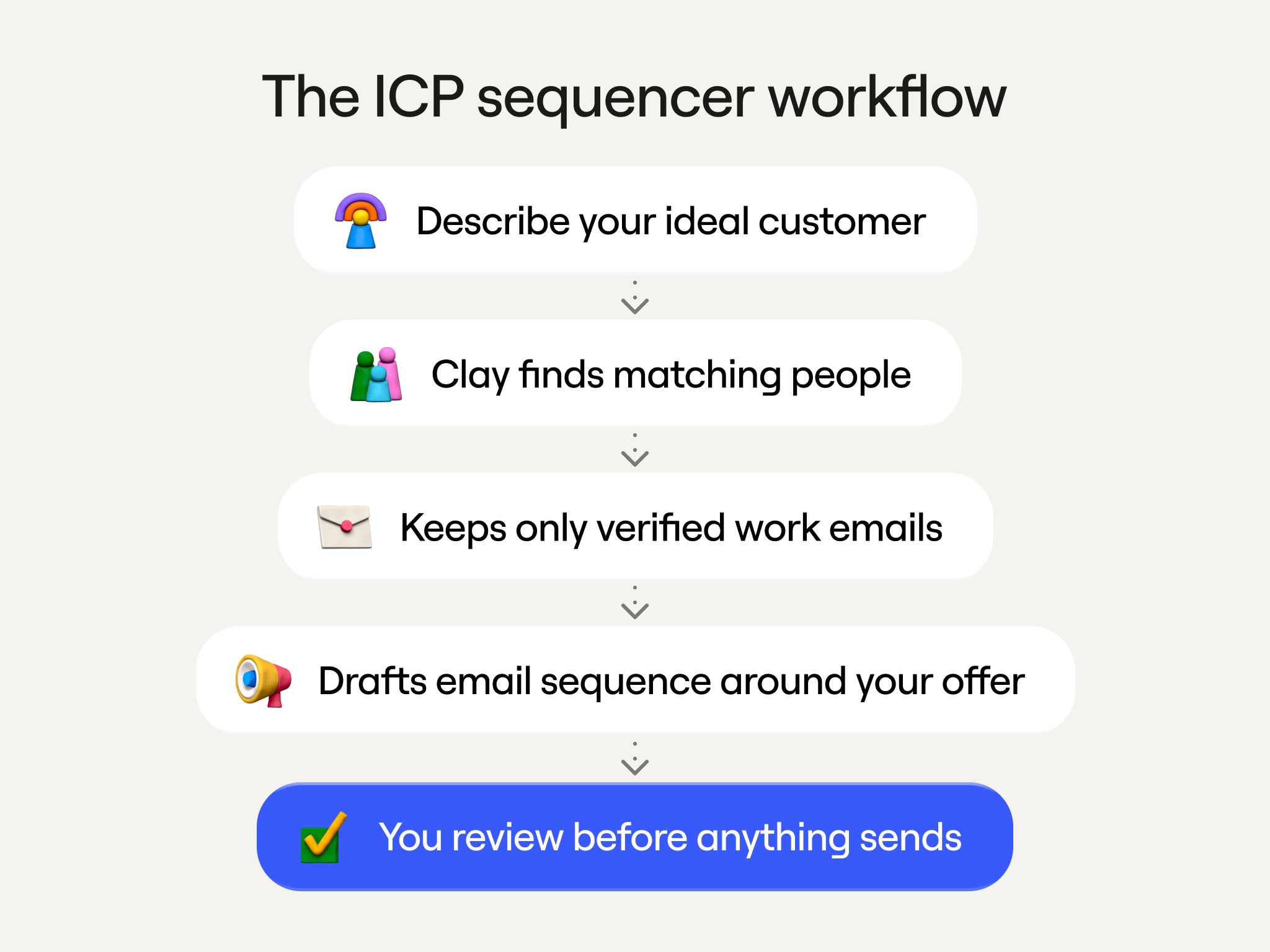
3. Describe your ideal customer
Once installed, Claude will run the skill by asking you a series of questions about your ICP. The information you can give includes data points such as:
- Company type, size, and growth
- Buyer titles, such as RevOps manager
- Location
- Exclusions
- Your offer to buyers
- Your call to action, such as a 20-minute phone call
- If you want to send case studies in your email
- If there’s any extra personalization you’d like to add
4. Let Claude build
Claude takes it from here and builds three things:
- A workflow that finds people and verifies emails through a waterfall
- An audience segment where the contacts are saved
- A draft for a two-part email sequence campaign
5. Review the workflow in Clay
You’ll now have a new workflow in your Clay dashboard as well as a new list of contacts.
Go to the sequencer to find the campaign, and you’ll see the two-part email sequence. Don’t worry — nothing will be sent until you decide it’s time. Claude Code will walk you through starting the campaign.
You can modify your pitches at any time in Claude Code. For example, you could further personalize a sequence by asking Claude to find the tech stack of the company a prospect works at, and tailoring your pitch to that stack.
6. Launch, schedule, and track your campaign
New workflows start as drafts. When you’re ready, ask Claude to publish the workflow, then choose how it runs — whether on a schedule, manually, or from a webhook.
After the campaign goes live, open the analytics to monitor performance. You can track sends and replies, see activity for each person in the sequence, and check the deliverability section for your bounce rate. You can also add domains and buy more inboxes directly in Clay to spread your sends across more accounts.
You don’t have to use Clay’s Sequencer. If your team already sends email through Instantly or Gong Engage, ask Claude Code to add a step at the end of the workflow that sends contacts there. You can do the same to push contacts into your CRM.
Try Clay and Claude for your small business this week
You don’t need a technical team to put any of this in place. Start with whichever piece fits where your business is right now:
- Run: Install Claude for Small Business and type /smb-onboard. Claude will ask about your business and set up the workflows that fit it.
- Grow: Connect Clay in Claude chat and ask it to find your next customers.
- Build: Install the Clay CLI and start with the ICP Sequencer Workflow skill on the Clay marketplace to turn your prospecting into a workflow that runs every week.
To see both demos from start to finish, watch the livestream replay.